The most tiring thing about an internet radio is having to be on air at every hour. The broadcaster sleeps, the computer shuts down, the connection drops; the station goes silent and the listener moves to another one. AutoDJ exists to solve that: it keeps your radio playing the schedule you prepared while you are off air.
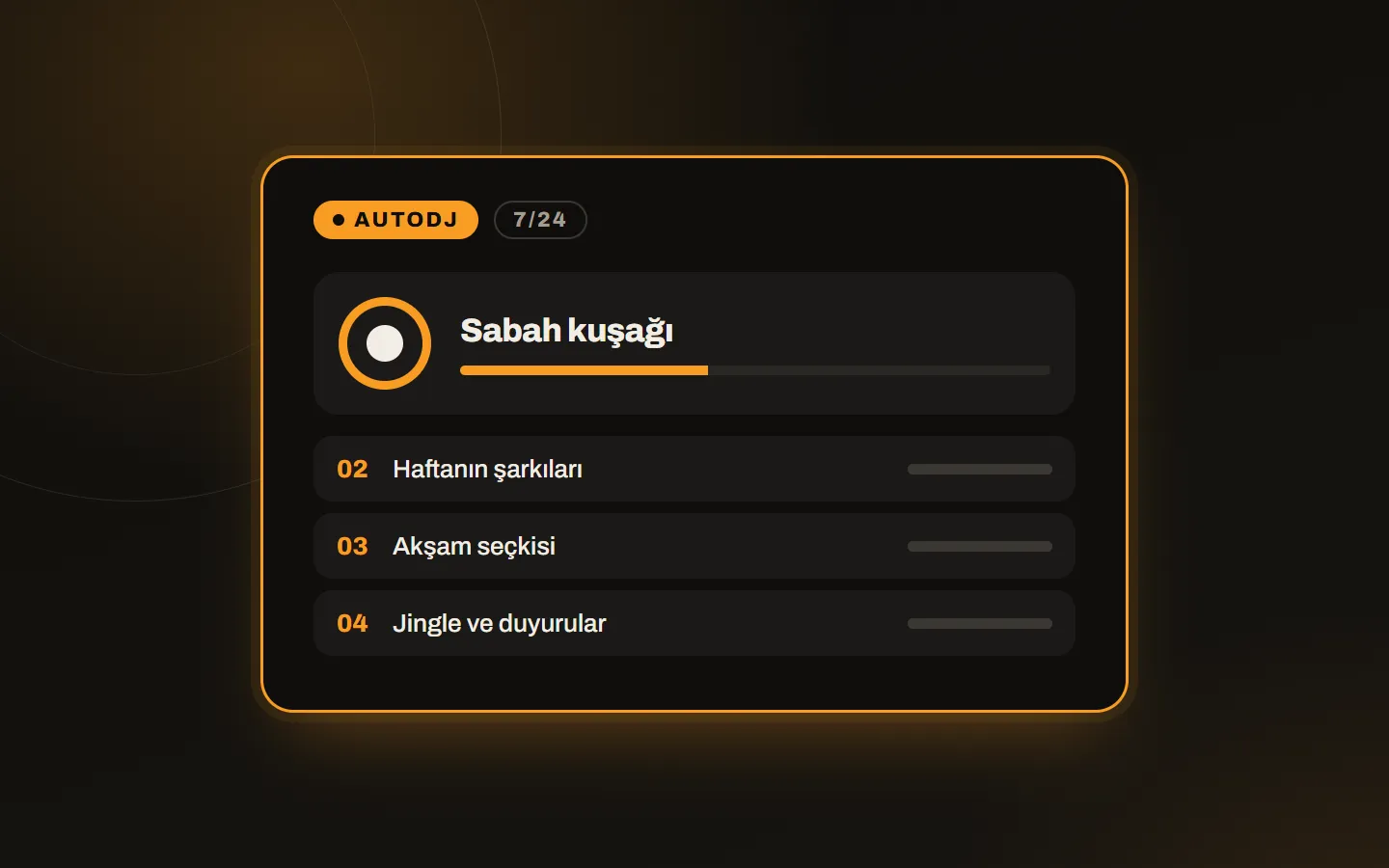
What does AutoDJ do?
AutoDJ is a system running on the radio hosting server that broadcasts music or programmes without human intervention. The music files you upload are stored on the server; AutoDJ delivers them directly to listeners in the order and by the rules you set. Your computer does not need to be on and you do not need to run broadcasting software.
As a result:
- The station stays on air 24/7 with no dropouts.
- You depend less on the broadcaster or DJ; the schedule is planned in advance.
- It uses little bandwidth and effort, which makes it an ideal start for new stations.
- The station looks professional and reliable; listeners never meet silence.
Does it work together with live shows?
Yes, and that is the best way to use it. Most radio infrastructures have “fallback” logic: when a live show starts, AutoDJ stops automatically, and when the live show drops or ends, it takes over again. In SonicPanel, DJ accounts connect while AutoDJ is on, so the listener’s connection does not break.
So think of AutoDJ not as an alternative to live shows but as their safety net: the main broadcast for stations that do not go live, the backup for those that do.
Five steps to a correct setup
- Prepare the music. Keep files at the same bitrate and format (for example 128 kbps MP3). Normalise the files for level differences; otherwise one song plays quietly and the next very loud.
- Organise the lists. Instead of one long list, build separate lists by theme (morning, evening, jingles, news break). You can schedule lists by date and time.
- Set transitions. Use smooth fades between tracks. The flow sounds more professional.
- Test the switch to live. Connect with a DJ account and check that AutoDJ stops and comes back when the live show ends. Do this test not once but after every major change.
- Watch the logs. Follow dropouts and errors in the panel logs.
Common mistakes
| Mistake | Result | Fix |
|---|---|---|
| An empty or very short list | The same tracks repeat or the stream goes silent | Keep the list long enough for a day of broadcast |
| Mixed bitrates and formats | Level and quality fluctuate | Convert all files to the same format |
| A different live bitrate | Quality jumps on switching to live | Use the same bitrate as AutoDJ |
| Never testing fallback | The radio goes silent when live drops | Test regularly |
| Ignoring copyright rules | Legal trouble | Obtain the permits needed for the music you broadcast |
Plan your disk space
AutoDJ stores music in your hosting account’s disk space. Roughly, a 128 kbps MP3 takes about 1 MB per minute; 1 GB is about 16 hours of music. If your archive is large, look at the radio hosting plans with 5, 10 or 30 GB. Live DJ recordings use the same space; we covered that in recording live DJ shows.
Conclusion
AutoDJ is the backbone of an internet radio: it frees you from the need to be on air all the time and gives listeners a regular flow. To get to know the panel where you manage your account, read SonicPanel features; if you plan to open several radios, see radio reseller hosting. To choose the right plan together, write to us.