A site has two basic safeguards: encrypting the connection between visitor and server (SSL) and a backup to return to when something goes wrong. DirectAdmin lets you manage both from the panel in a few clicks. This guide explains how to do each and what to watch for.
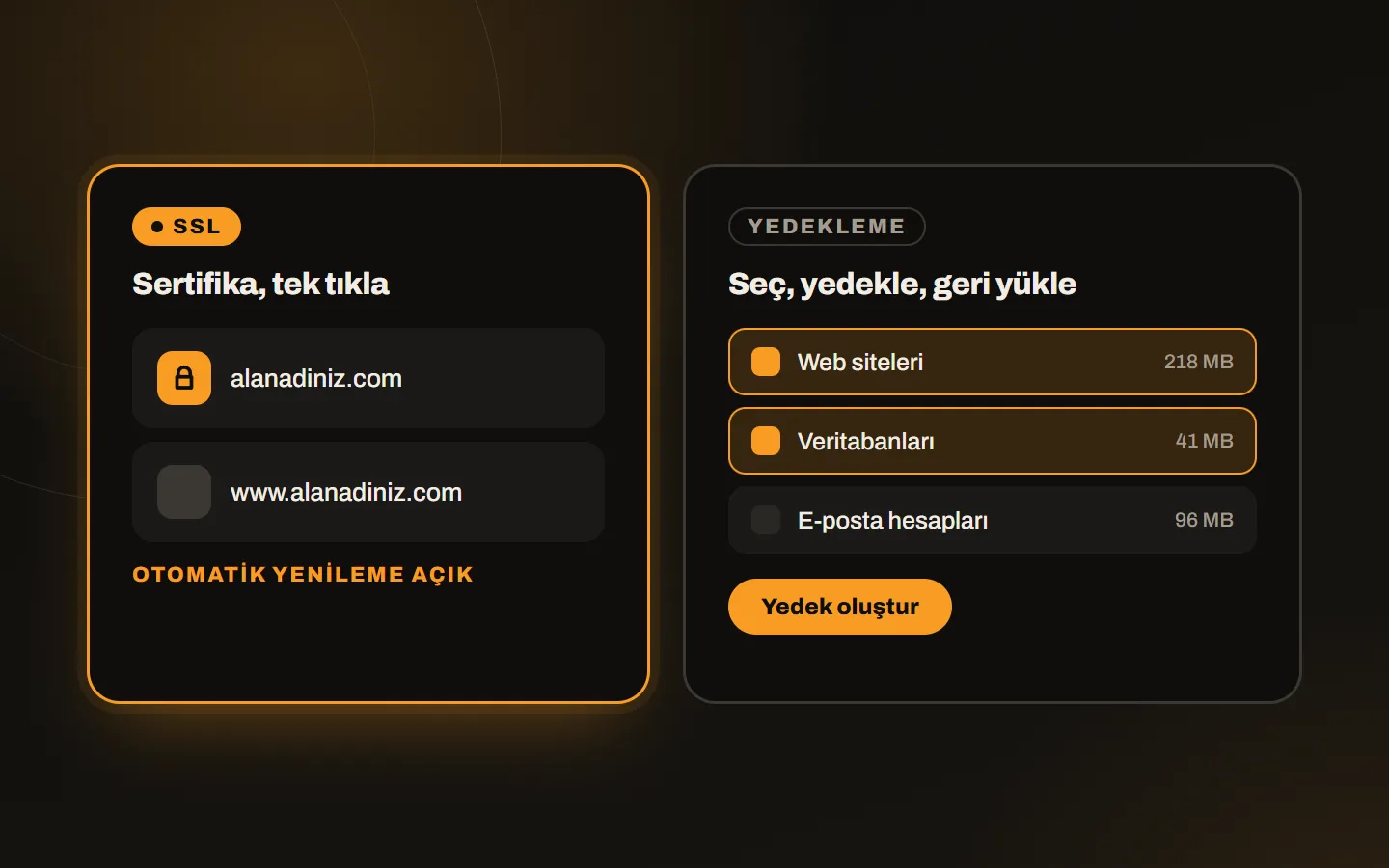
Getting an SSL certificate
DirectAdmin lets you get a free Let’s Encrypt certificate from the panel; you can also upload a certificate you bought or create a self-signed one. For most sites the free certificate is enough.
- In the user panel, open SSL Certificates.
- Choose the free, automatic certificate option.
- Tick the domain names to include in the certificate (the bare domain and its
wwwform). - Save. The certificate becomes active within a few minutes.
The domain’s DNS record must point to the server; otherwise validation fails.
Automatic renewal
Free certificates are valid for a short time, so they have to be renewed. DirectAdmin renews the certificate automatically before it expires; still, glancing at the certificate status in the panel now and then is a good habit. The most common reason renewal fails is a DNS change that means the domain no longer points to the server.
Redirecting HTTP to HTTPS
Getting a certificate alone is not enough; visitors who enter the http:// address must be moved to https:// automatically. You can do that from the account’s redirect settings or the site’s configuration. For speed after the certificate, see the website speed checklist. For another use of SSL, see SSL on a radio stream.
Taking backups
In DirectAdmin you take backups at two levels.
User backup. In the user panel, under Create/Restore Backups, you choose what the account includes: websites, databases, email accounts, email data. You can create the backup and download it to your computer or keep it on the server.
Admin backup. At admin (or reseller) level you can back up several accounts together, schedule backups and set them to be sent to another server or FTP.
Good backup habits
- Keep the backup away from the server. If the backup stays on the same server, you lose it when the server is lost. Copy it to another server, FTP or cloud storage.
- Take them regularly and automatically. Manual backups get forgotten. Set up a daily or weekly schedule.
- Know what you are taking. Make sure you select files, database and email together; a files-only backup will not bring a dynamic site back.
- Test the restore. A backup that has never been tested is not a backup. Now and then restore it into an empty account and check that it works.
Restoring
When something goes wrong, you choose the backup from the same section, tick what to restore and start the process. On small accounts it takes a few minutes. Taking a backup of the current state before restoring is a good safeguard against picking the wrong backup.
Summary
Get SSL from the panel, make sure automatic renewal works and add the HTTPS redirect. Keep backups automatic, regular and off the server, and try restoring now and then. If you are setting up the panel, see the VPS installation guide; to get to know the panel, read what is DirectAdmin. If you would like us to set up your server’s installation, SSL and backups, we do it along with the DirectAdmin license, or you can write to us.